

Axero works with SharePoint instead of making you rip it out
If your documents already live in SharePoint Online and OneDrive, you don’t have to move everything to get a usable intranet. Axero’s SharePoint integration connects to your existing SharePoint and OneDrive content and surfaces it inside your intranet, so employees find, preview, and edit files in the same place they read company news and find people, without bouncing between tools.
This page is about how the integration works, what you can do once it’s set up, and what to expect if you decide to bring SharePoint and OneDrive content into Axero. (If you’re deciding between the two platforms rather than connecting them, that’s a separate question we cover in Axero vs. SharePoint.)
How the integration works
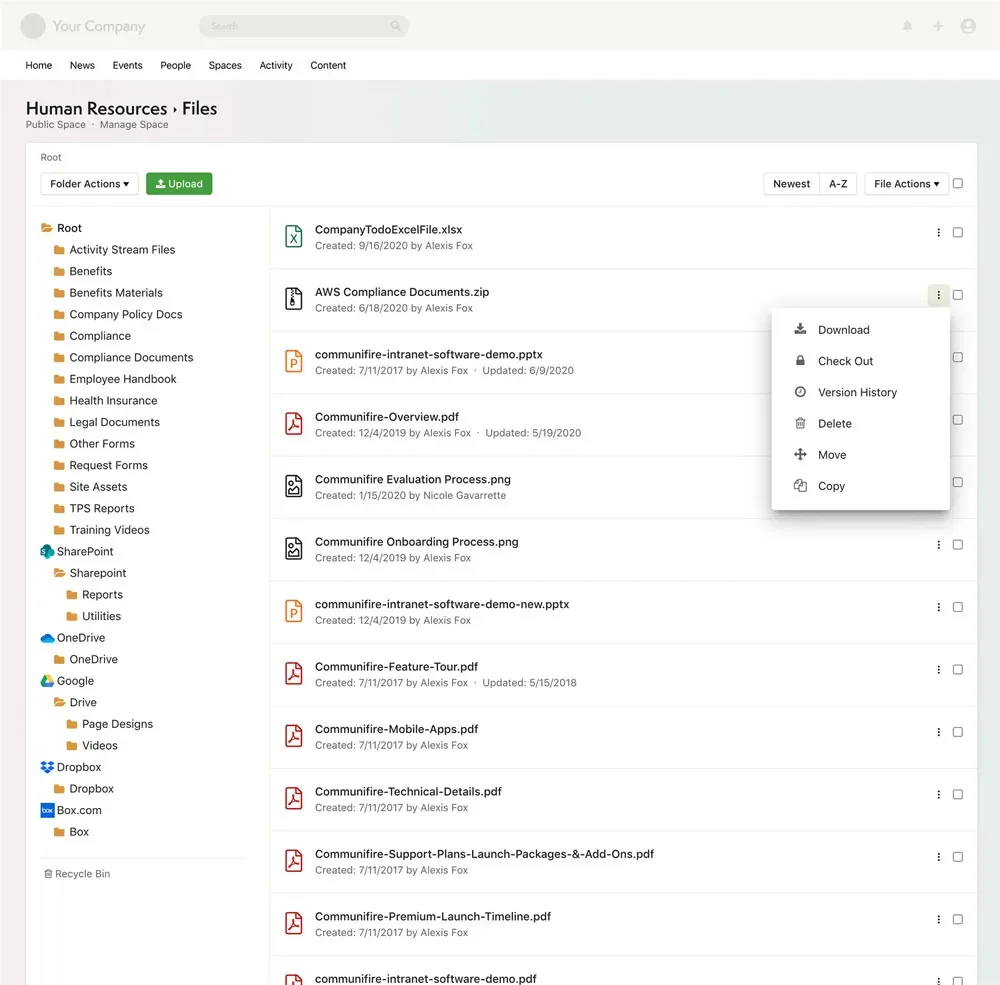
The connection is configured by an administrator against your Microsoft 365 / SharePoint Online tenant. Once it’s authorized, you attach SharePoint document libraries and OneDrive folders to Axero Spaces. From that point on, the files show up in the relevant Space. They’re not copied and frozen; they stay linked to the source.
A few specifics worth knowing before you set it up:
- Authentication runs through your Microsoft 365 tenant, so users access content under their existing Microsoft permissions, with no back door to files they shouldn’t see.
- Files stay in sync both ways. Edit a document in Axero or in SharePoint and the latest version is reflected in both. There’s no “which copy is current?” problem because there’s one copy.
- You map content to Spaces, so a SharePoint library can live in the department Space where it belongs (the Finance library in the Finance Space) instead of in a flat drive everyone scrolls through.
- Works on any Axero deployment. The integration is available whether you run Axero in our cloud or self-host it on your own infrastructure. Choosing self-hosted doesn’t cost you the SharePoint connection.
Setup steps and tenant requirements are in the SharePoint and OneDrive sync administrator guide.
What you can do once it’s connected
Access SharePoint document libraries inside the intranet
Browse, preview, comment on, and open SharePoint files directly from an Axero Space. Employees work with the documents where they already are, alongside announcements, wikis, and the people directory, instead of opening SharePoint as a separate destination.
Connect OneDrive folders
OneDrive sync brings personal and shared OneDrive folders into Axero the same way, so individual working files and team libraries are both reachable from one place.
Search across SharePoint and intranet content at once
This is the part most teams notice first. Axero search spans your intranet content and the connected SharePoint and OneDrive files, so a single query returns the policy page, the wiki article, and the SharePoint document, not three separate searches in three separate tools. For a lot of companies, “we couldn’t find anything” is the original reason SharePoint felt painful; unified search is the fix.
Keep one current version
Because edits sync both directions, the file in the intranet and the file in SharePoint are the same file. No emailed copies, no “final_v3_USE_THIS” drift.
What to expect when bringing SharePoint and OneDrive content into Axero
You don’t have to migrate in a big-bang cutover. The realistic path:
- Connect, don’t copy, first. Authorize the integration and attach your highest-traffic libraries to the right Spaces. Most of the value (findability and in-context access) shows up here, before you move anything.
- Decide what should actually live in Axero. Some content is better authored natively in the intranet (policies, onboarding, announcements) where it gets version control, review dates, and granular permissions. Other content can stay in SharePoint and remain connected. You don’t have to choose one home for everything.
- Migrate selectively, by team. Where you do move content, do it Space by Space so each department validates its own structure and permissions as it goes. Phasing it keeps the rollout boring, which is what you want.
The result is a hybrid most IT teams are comfortable with: SharePoint and OneDrive keep doing what they do, and Axero becomes the place employees actually go to find and use what’s in them.
Part of a broader Microsoft 365 fit
SharePoint rarely travels alone. Axero also connects the rest of your stack through the Microsoft 365 integration, which brings in Outlook, Teams, Office documents, and calendars, so the intranet sits naturally on top of the Microsoft tools your organization already runs. If your environment is Microsoft-first, the two integrations together let Axero be the front door without displacing the back end.